Service of Process may now be requested after a case has been initiated in select courts. If available for your location, the option to serve your accepted documents directly to parties at their home or place of business will be available via our new Service of Process option listed on the dashboard of your account.
How to Place a Standalone Service of Process Order
To place a new order for Service of Process without submitting a new court filing:
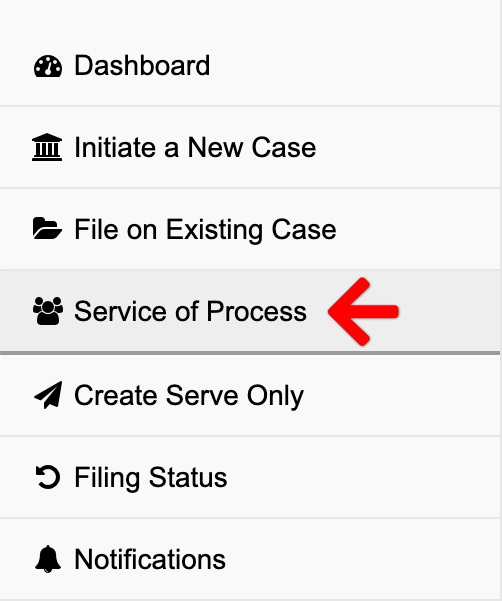
Start an Order
- Log in to your Green Filing account.
- From your Dashboard, click on Service of Process in the left sidebar menu.
The following tabs take you through each section of the filing
1. Select Case – Choose your case, or click add a case to retrieve your case from the court’s system.
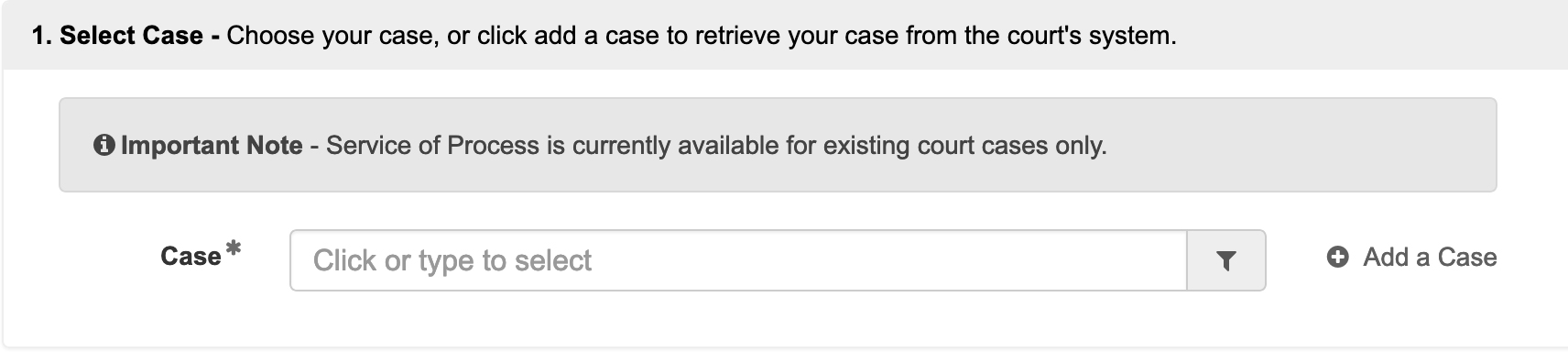
If you do not see your case in the drop down, you may type some or all of the case number to filter your results. If you have not yet added the case to your account, you may click the Add a Case link to the right of the Case field.
2. Add Documents – Define, select, and upload the documents that make up your filing.
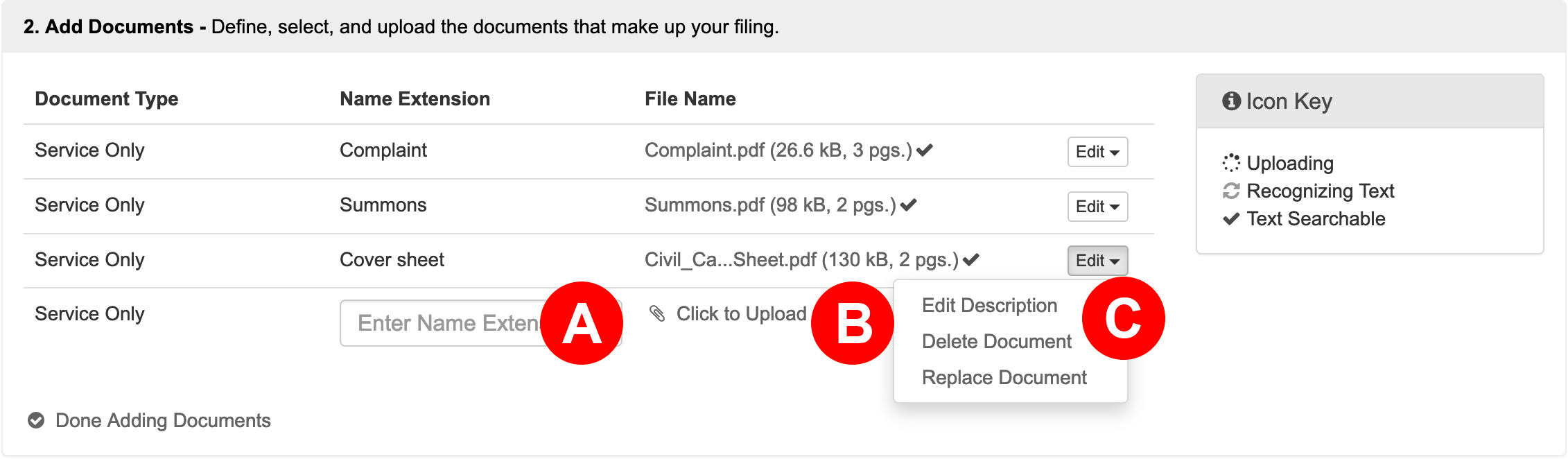
- Document Description/Name Extension – Enter the document title in the document description/name extension field.
- Click to Upload – Click the link to add your document. Aside from the Bulk Party List, our system will automatically convert most native file formats (i.e. Word, WordPerfect, JPG, PNG, GIF, TIF) into the Court’s preferred Adobe PDF format, upon upload.
- Edit – Click the Edit button to edit a description, delete a document, or replace a document.
3. Service of Process – Serve documents directly to parties at their home or place of business.
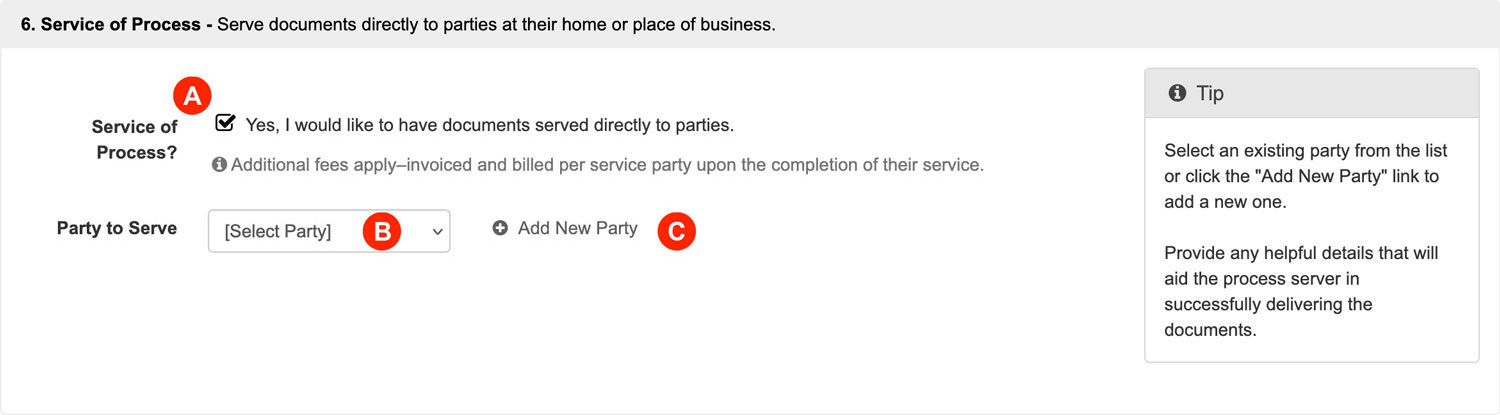
- You may check the box Yes, I would like to have documents served directly to parties. to begin an order.
- If you wish to select one of the existing case parties, you can select them from the drop down list.
- If you wish to order service to a party that is not in the drop down list, you may click the “Add a New Party link” to add them.
Add an Individual Party
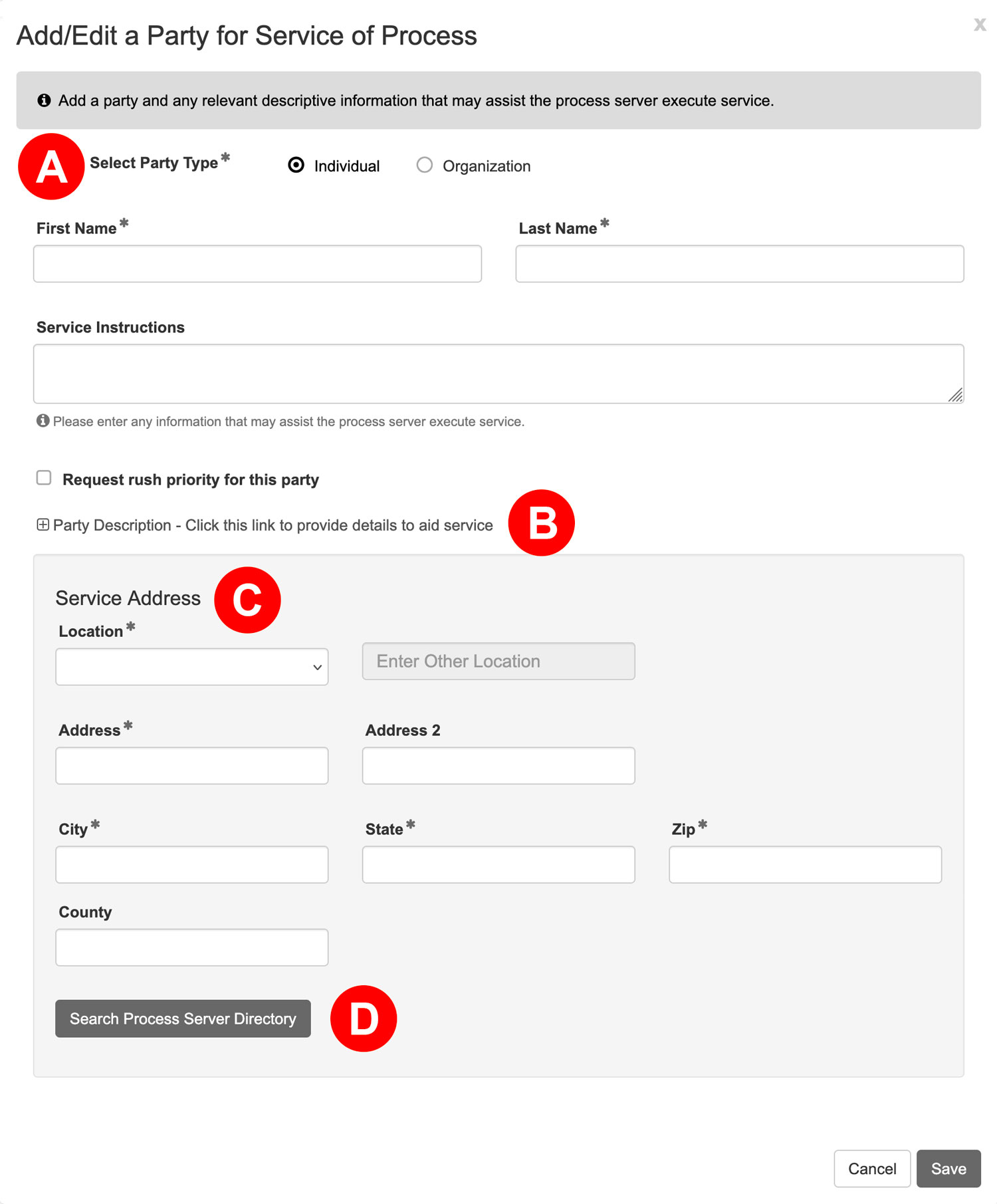
- Individual Radio Button: To add an individual party, select the “Individual” radio button, enter a first and last name, and enter any information that may assist the process server execute service.
If you selected an individual party from the drop down to start the order, our system will auto-select the individual party option and populate that party’s name in the corresponding field.
Disburse Witness Fees – If you need to disburse witness fees for a party, please enter the Disbursement Amount and the Payee (whom we should make the check out to) in the Service Instructions text box. We will collect this amount upon completion of the order. - Party Description: Click the link marked “Party Description – Click this link to provide details to aid service” to expand a section to provide a detailed physical description of the individual. To increase the likelihood of a successful serve, aim for at least five distinguishing features, such as height, hair color, eye color, any noticeable tattoos, or specific clothing preferences.
- Service Address: A full address is required for the individual you wish to serve. If you’re uncertain about the target’s exact location, consider requesting a skip trace to obtain more accurate details.
- Search Process Server Directory: Once you enter a service address, our system will perform a search of our process server directory so that you may select a Partner Agency. If you make changes to the address, you may click the button to perform another search.
Partner Agency
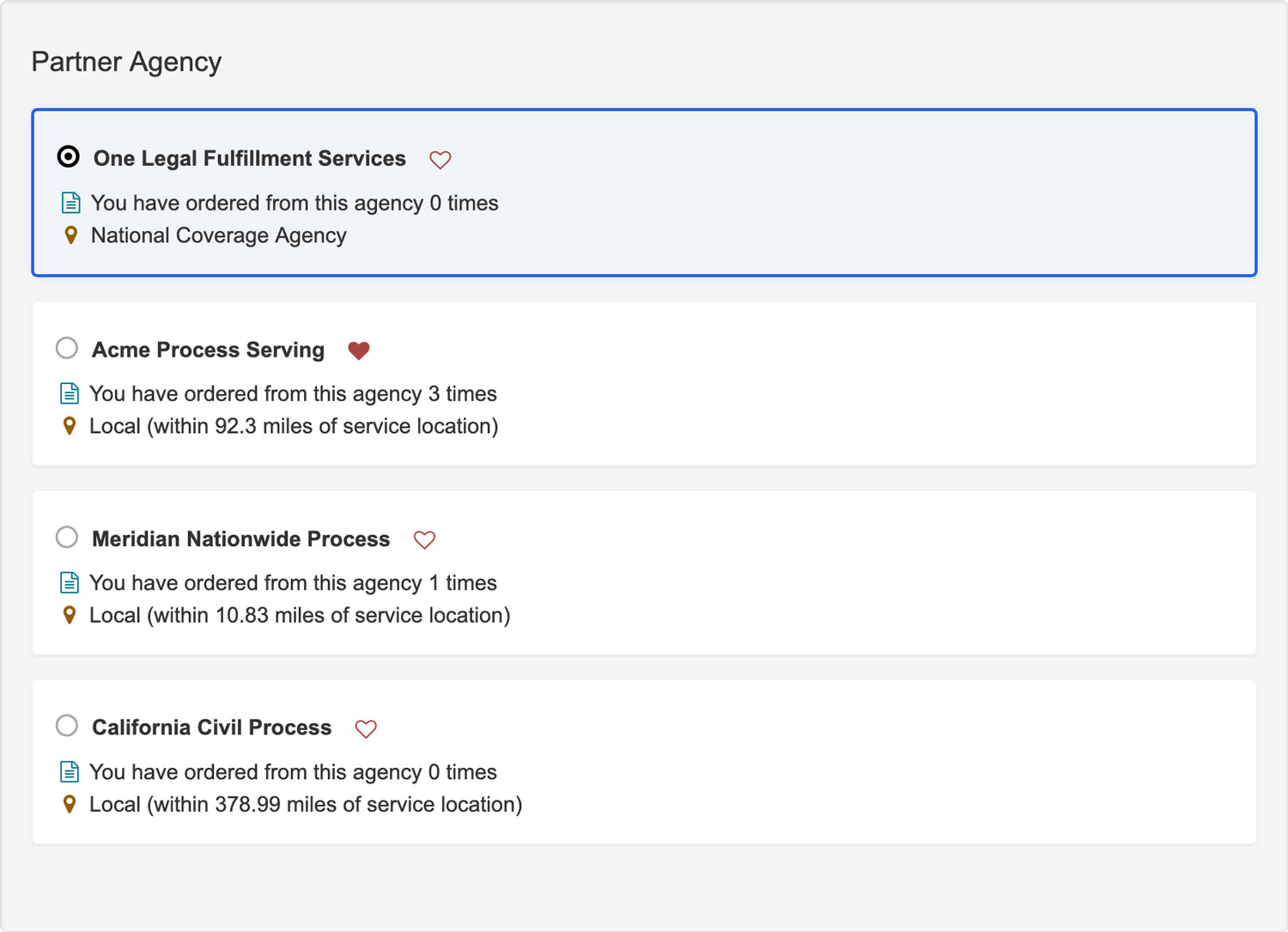
You may now select your Partner Agency to use for service. One Legal Fulfillment Services is selected by default to serve your party. Based on your address, we also provided three alternate agencies. Click the heart icon on any agency to save it as a favorite.
Add an Organization/Business Party
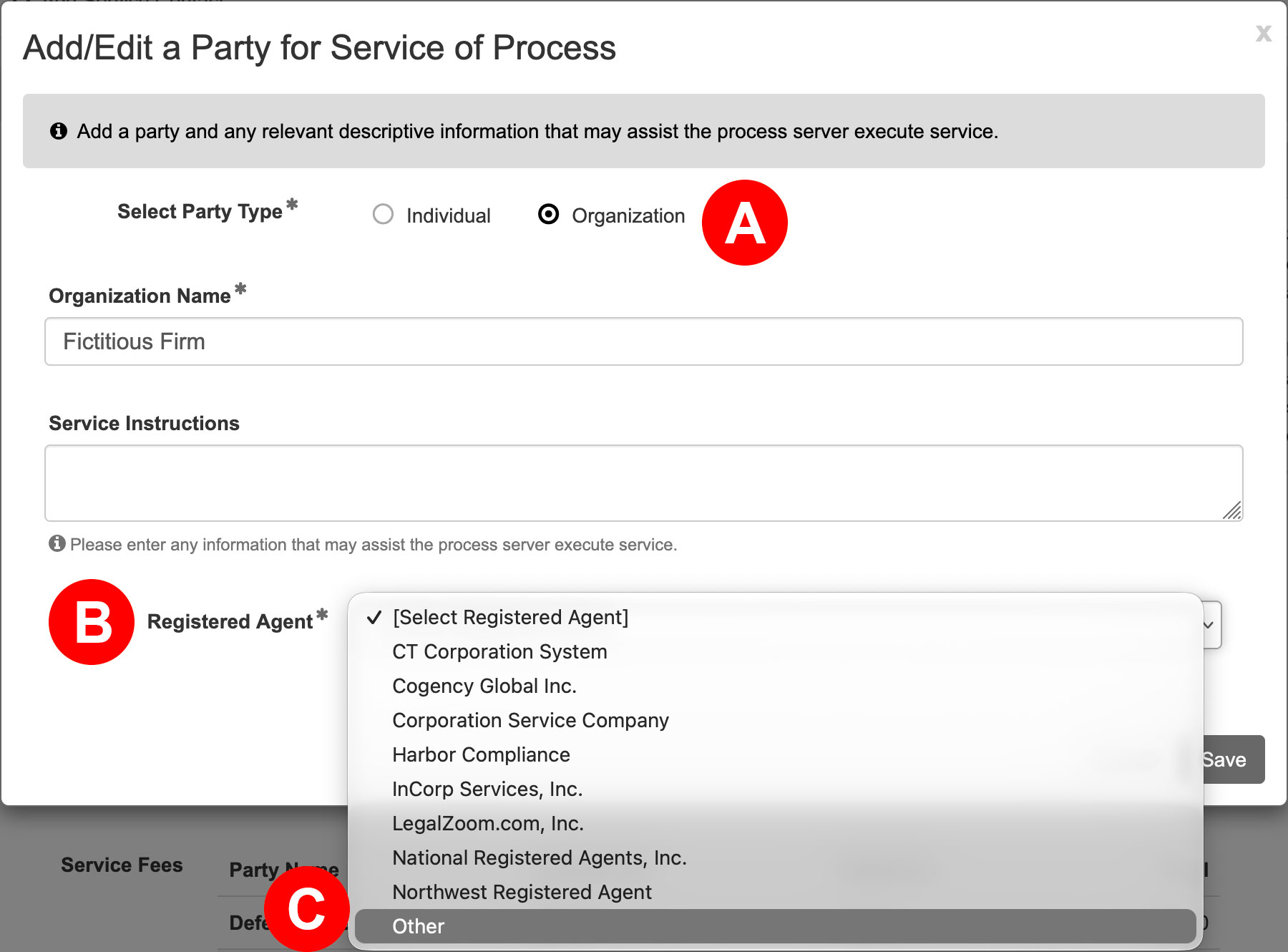
- Organization Radio Button: To add an organization party, select the “Organization” radio button, enter an organization’s name, and enter any information that may assist the process server execute service.
If you selected an organization party from the drop down to start the order, our system will auto-select the organization party option and populate that party’s name in the corresponding field.
- Registered Agent: When serving a business or organization, it’s crucial to identify the agent for service. This is the individual or entity designated to receive legal documents on behalf of the business. You may select a registered agent from the list in this section or if you choose, select the Other option, to enter a service address and Search Process Server Directory.
- Service Address: A full address is required for the registered agent/authorized agent you wish to serve.
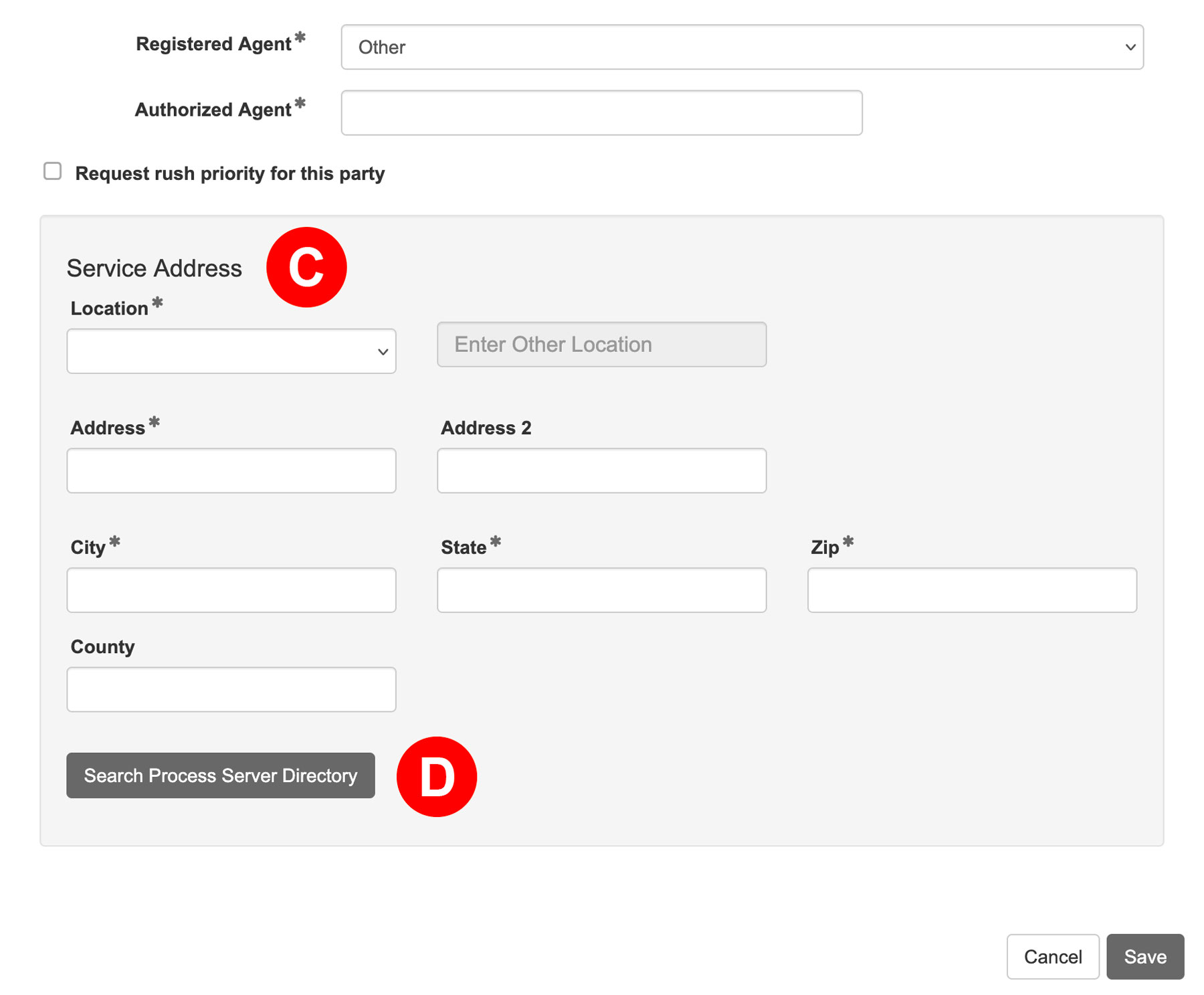
- Search Process Server Directory: Once you enter a service address, our system will perform a search of our process server directory so that you may select a Partner Agency. If you make changes to the address, you may click the button to perform another search.
Partner Agency
If you select the Registered Agent option of Other, you may now select a Partner Agency to use for service. One Legal Fulfillment Services is selected by default to serve your party. Based on your address, we also provided three alternate agencies. Click the heart icon on any agency to save it as a favorite.
Review Party Information and Estimated Fees
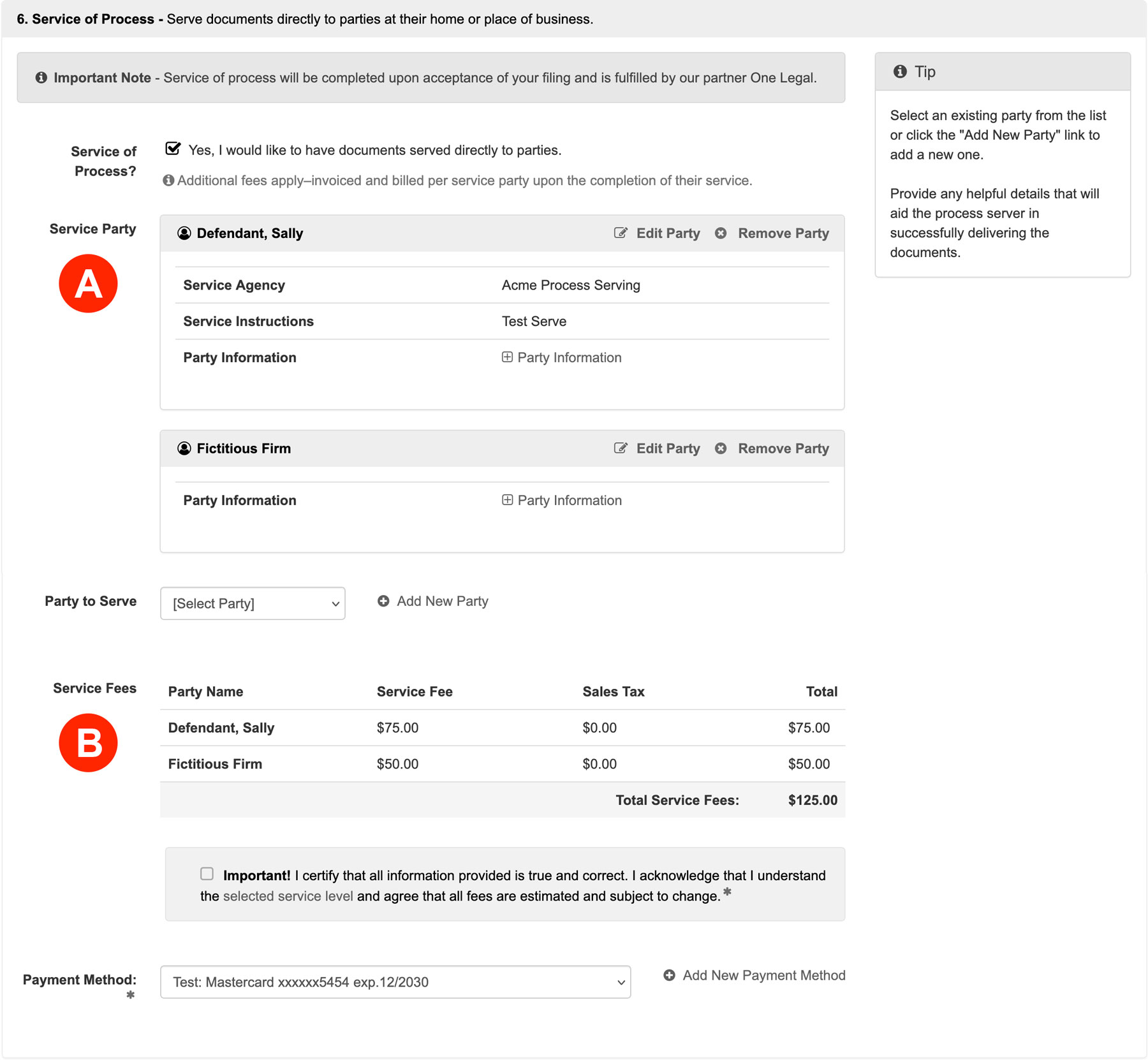
Once you have added a party, you will see two tables you will want to review to confirm your order is correct.
- Service Party: Please review all party information for accuracy before submitting the filing. If anything is incorrect, edit your information or remove the party. Additionally, you may add another party to be served.
- Service Fees: After you have entered all parties you wish to have served, you will find a list of the parties with the estimated fees associated for serving that party. You will then choose a payment type for the service of process. Each party will be invoiced separately using that payment type.
Please note: these fees are estimated at this point and are subject to change. Filers will be required to check the box acknowledging that they understand the fees are estimated.
5. Review & Submit – Finalize your submission, review, and submit.
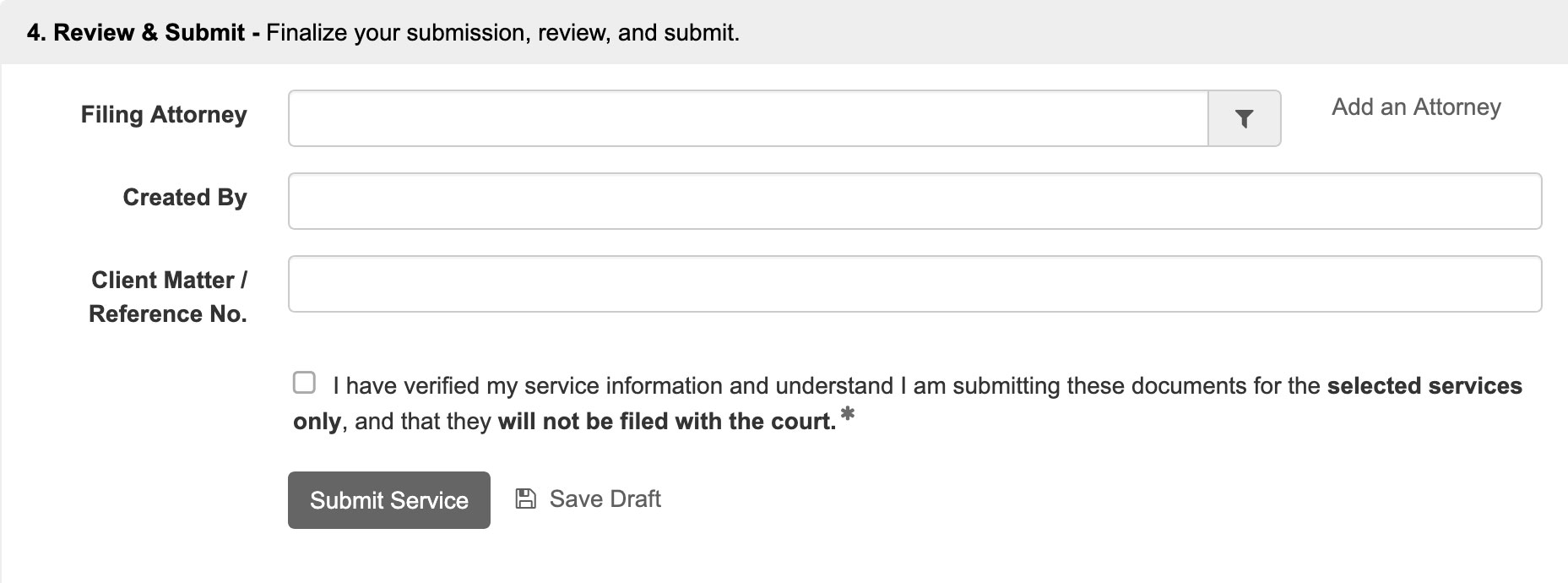
- Review your filing for accuracy.
- Select an existing attorney on your account or add a new attorney.
- Add a Client Matter Number (optional).
- Check the acknowledgment box to confirm your service information and acknowledge that these documents will be processed for service only—not filed with the court.
Service of Process FAQs
Q: When do you send the order to my process serving agency?
A: As soon as you click Submit, your documents are immediately sent to your selected agency to begin processing.
Q: How many attempts will the process server make?
A: Your assigned process server will make up to five attempts to complete service. If service cannot be effectuated after five attempts, you will receive a Non-Service Report with the option to purchase additional attempts.
Q: What is the timeline for delivery attempts?
A: When placing your order, you can choose between two delivery options:
- Standard Delivery (Default): The first attempt will be made within three business days of receiving your order. Subsequent attempts will be made at least once every three days (up to five attempts total).
- Rush Priority: Orders received before 12:00 PM (noon) in the service target’s time zone receive their first attempt on the same day. (Note: For filings requiring court processing, this is contingent on the date and time the court clerk accepts the filing). Orders received after 12:00 PM will receive their first attempt the following day. Subsequent attempts will be made daily (up to five attempts total).
Q: How can I communicate with my process serving agency?
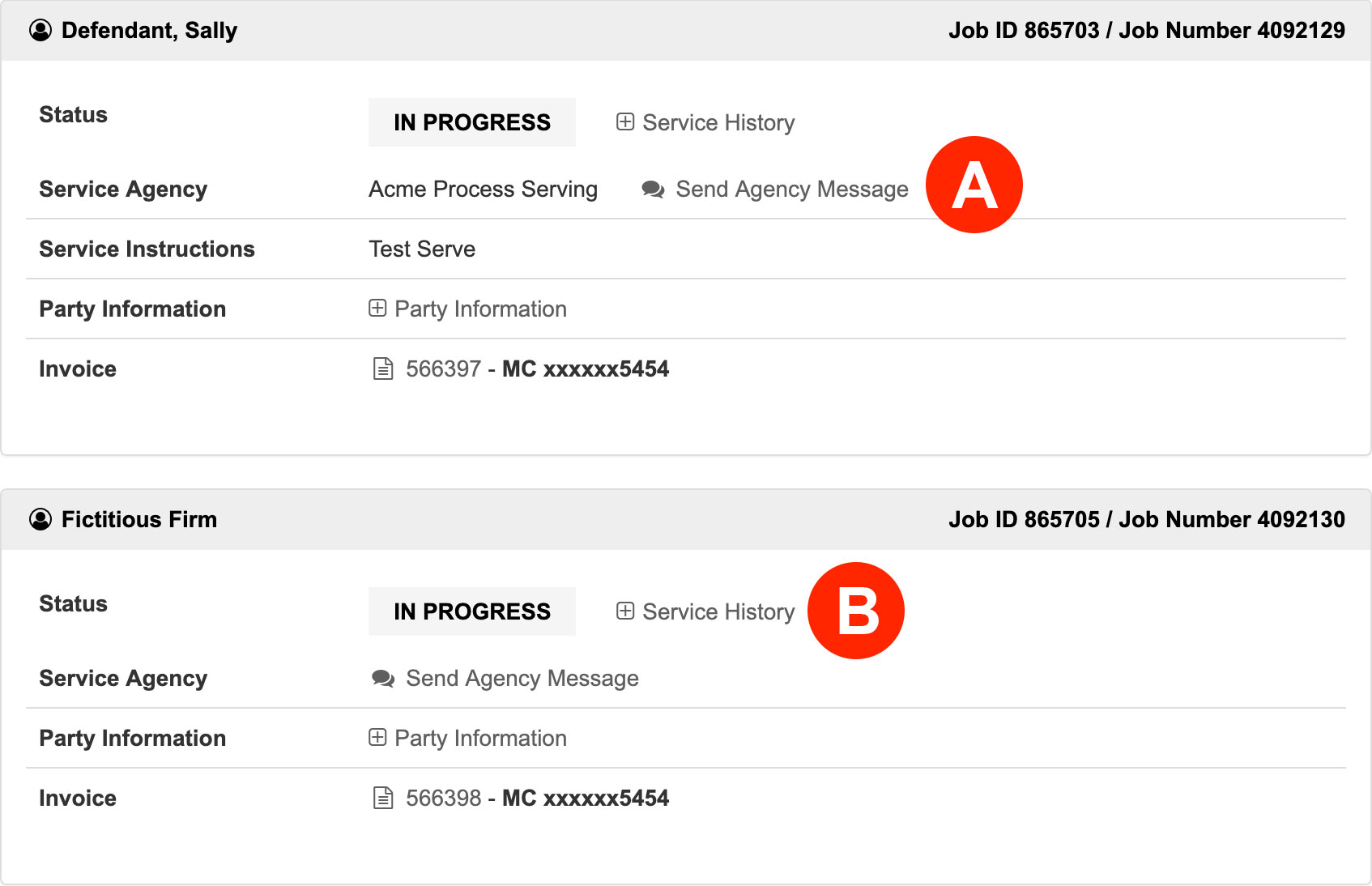
A: Once your order is In Process, you can message your agency directly:
- Open your accepted filing and scroll down to the Service of Process section.
- Click Send Agency Message next to the specific party you wish to contact.
- In the popup window, select your message topic (e.g., Update Address, Question about Fees, Status Request) and enter your message (up to 500 characters).
Q: How do I cancel a Service of Process order?
A: To cancel an order, you must send a cancellation request to your agency through the filing:
- Open your filing and locate the Service of Process section.
- Click Send Agency Message next to the party whose service you wish to cancel.
- Select CANCEL as the message type, enter a brief reason for the cancellation, and submit.